
Verified Windows builds for AssetRipper 2.0.0
The current stable manifest lists version 2.0.0. Use the build that matches your Windows processor, then keep the official release page as a fallback when you want to compare channels.
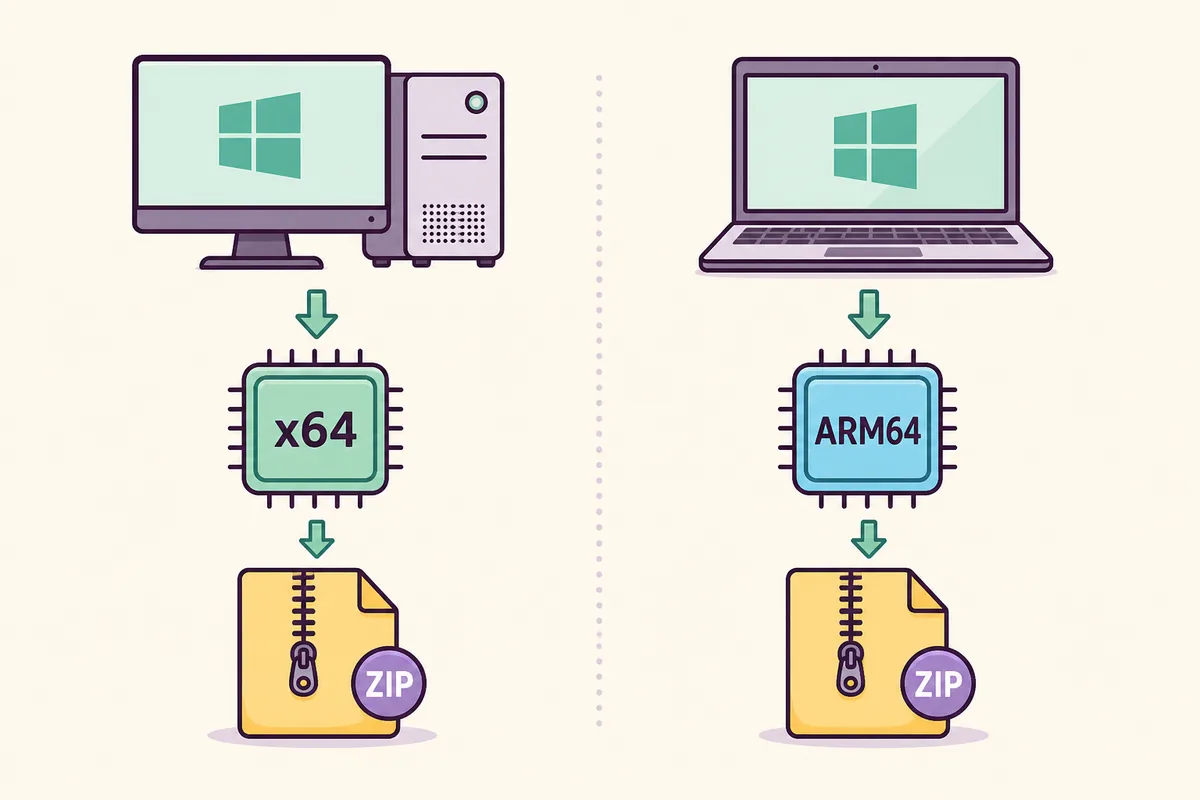
Windows x64
AssetRipper_win_x64.zip
42.4 MB · Extract the ZIP, then run AssetRipper.exe.
View official release assets release page fallbackWindows ARM64
AssetRipper_win_arm64.zip
40.5 MB · Use this build on a Windows ARM64 device.
View official release assets release page fallbackWhich Windows build should you download?
For most Windows desktops and laptops with Intel or AMD processors, choose the x64 archive: AssetRipper_win_x64.zip. Windows ARM64 is for a Windows device built around an ARM processor. The processor architecture matters more than the laptop brand, screen size, or Windows edition.
The official 2.0.0 metadata records the Windows x64 archive at 42.4 MB and the Windows ARM64 archive at 40.5 MB. The direct CDN probes for these two files were not completed in this environment, so use the official release-page fallback shown below when downloading. These are release facts, not a promise that every Unity input will load.
| Build | Choose it when | What to remember |
|---|---|---|
| Windows x64 | Intel or AMD Windows PC | The normal choice for most desktops and laptops. |
| Windows ARM64 | ARM-based Windows device | Do not choose it just because the device is thin or portable. |
How to run AssetRipper on Windows
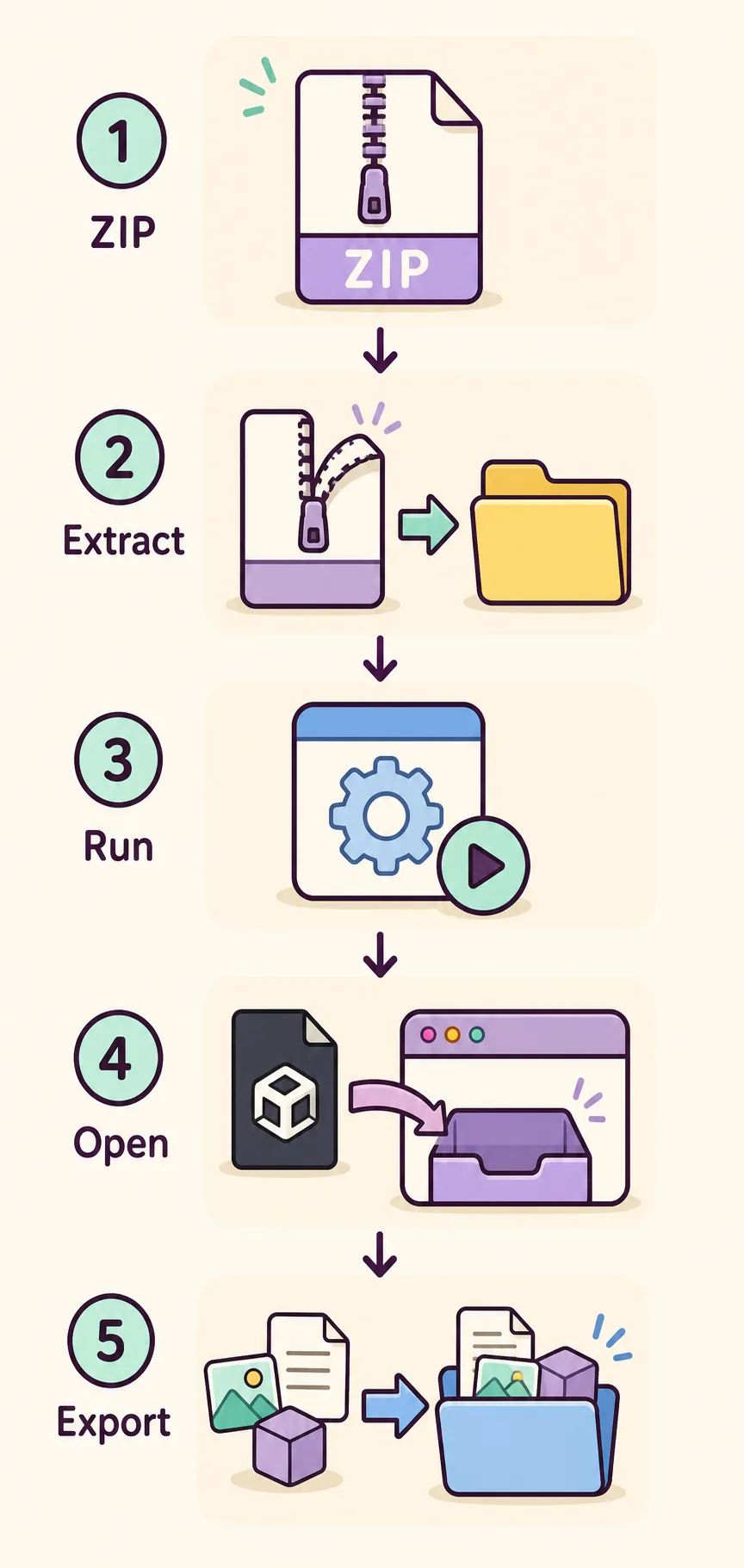
Download from the official release asset, then extract the ZIP completely to a folder you can write to, such as C:/Tools/AssetRipper. Do not treat the compressed archive as the application folder. Keep AssetRipper.exe beside the native libraries and other files shipped in the same archive.
For the first test, use a small Unity file or bundle that you own or are authorized to inspect. Keep the original input untouched and select a separate output directory. This makes it easier to tell whether a result came from the Windows setup, the selected folder, or the Unity data itself.
Choose
Select Windows x64 for most Intel or AMD PCs; use ARM64 only when the device architecture requires it.
Extract
Unzip the complete archive into a short, writable local folder and keep the shipped files together.
Run
Open AssetRipper.exe from the extracted folder instead of launching it from inside the ZIP.
Open
Load one authorized Unity folder, serialized file, or bundle that is small enough to test quickly.
Export
Write the result to a new folder, then inspect the files before changing the input or build.
If Windows blocks the first launch
A Windows reputation or SmartScreen message is not the same thing as proof that a file is malicious, but it is a reason to verify the source. Check that the download came from the AssetRipper GitHub release, that the filename matches the selected architecture, and that the archive was not replaced by a mirror. Keep normal security controls enabled and use the operating system's ordinary review flow.
If the application opens but the expected data is missing, switch from platform checks to input checks. A wrong folder level, a partially extracted archive, encrypted or custom-packed content, and unsupported Unity data can all look like a Windows failure. Test one known file before loading a large directory.
Windows shows a SmartScreen warning
Likely cause: The executable has a reputation warning or the source is unclear.
Try this: Verify the official release URL and filename, keep protection on, and do not replace it with a modified mirror.
Double-click does nothing
Likely cause: The archive may be incomplete, the native files may be missing, or the architecture may be wrong.
Try this: Extract again, check x64 versus ARM64, use a simple local folder, and record any visible error.
AssetRipper opens but finds no files
Likely cause: The selected path may be the wrong folder level or the input may be unsupported or encrypted.
Try this: Try a small authorized Unity file and then follow the symptom checks in the troubleshooting guide.
- Do not disable antivirus protection just to force an unknown build to run.
- Do not delete native libraries from the extracted folder to make it look cleaner.
- Do not treat a successful launch as proof that the selected Unity project is supported.
- Keep the exact version, filename, Windows architecture, path, and warning text in your notes.

Windows checks before an issue report
Before opening an issue, make the test reproducible. Record AssetRipper 2.0.0, the Windows architecture, the exact input type, the folder level you selected, and the output location. A short local path and a small authorized sample are more useful than a full game folder that contains many unrelated files.
Separate a launch failure from a loading failure. If AssetRipper.exe never opens, focus on extraction, architecture, permissions, and the Windows message. If it opens but reports no files or fails during export, keep the platform baseline fixed and investigate the input, dependencies, Unity version clue, memory, and output destination.
- Confirm that AssetRipper.exe is still beside the files shipped in the ZIP.
- Use a writable local output folder with enough free space; avoid a synchronized or protected path during the first test.
- Try one serialized file or bundle before selecting an entire directory.
- Save the smallest useful log or screenshot and remove private project information before sharing it.
AssetRipper.exeKeep the Windows output separate
AssetRipper writes reconstructed projects or selected content into the destination you choose. Use a new output folder rather than writing over the original build. This preserves a clean comparison point when you change one variable, such as the archive architecture, the input file, or the export mode.
A readable export is not automatically complete or reusable. Meshes may need materials, textures, scenes, dependencies, or manual repair. The Windows guide gets the application running; the export guide explains how to choose Unity Project, Primary Content, model, GLB, or a focused content result.
AssetRipper Windows questions
Which AssetRipper Windows file should I download?
Most Intel and AMD Windows computers should start with AssetRipper_win_x64.zip. Use AssetRipper_win_arm64.zip only for a Windows ARM64 device.
Where can I find AssetRipper_win_x64?
Find AssetRipper_win_x64.zip in the official 2.0.0 GitHub release metadata and use the official release-page fallback linked on this site when a direct asset probe is unavailable.
Why does AssetRipper.exe not open?
Check that the ZIP was fully extracted, the native files remain beside the executable, and the archive matches your Windows architecture. Then record the Windows message instead of repeatedly changing several variables.
Is a SmartScreen warning proof that AssetRipper is a virus?
No single warning is a complete security verdict. Verify the official source, keep your normal security tools active, and do not use a modified mirror simply to avoid the warning.
Why does AssetRipper say no files loaded on Windows?
The path may be one level too high or the input may be unsupported, encrypted, custom-packed, or missing dependencies. Test a small authorized Unity file and use the troubleshooting guide.
Does the Windows guide guarantee Unity compatibility?
No. It covers the desktop setup. The exact Unity version, file type, dependencies, compression, encryption, and parser support still determine what can be read or exported.