
Choose the right AssetRipper macOS build
To check the architecture, open Apple menu → About This Mac. Intel Macs identify an Intel processor, while Apple Silicon Macs show an Apple chip such as M1, M2, M3, or M4. If you choose the wrong archive, the application may fail to launch or run through a compatibility layer.
| Mac | Choose | Archive |
|---|---|---|
| Intel processor | macOS Intel | AssetRipper_mac_x64.zip |
| Apple M-series processor | macOS Apple Silicon | AssetRipper_mac_arm64.zip |
Extract and launch AssetRipper on macOS
Download the official ZIP
Use the macOS x64 or macOS ARM64 card on the download page. Keep the official release URL visible if you need to verify the file later.
Extract the archive
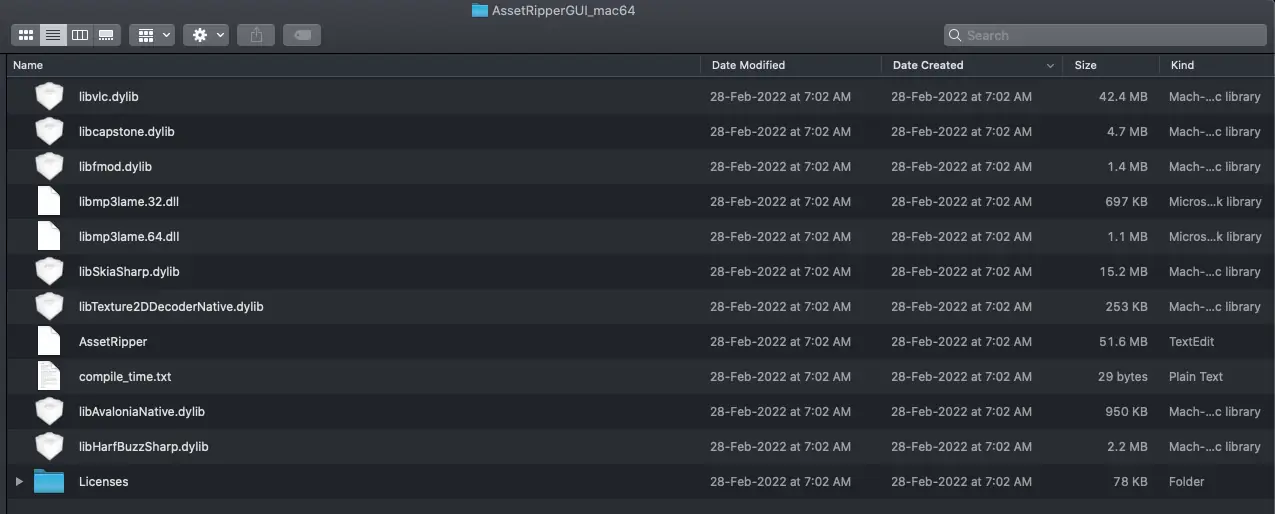
Double-click the ZIP in Finder and keep the extracted application folder intact. Do not move native libraries away from the executable.
Try the application
Open the extracted application or binary. If macOS blocks it, read the exact warning and use System Settings or the terminal step documented by the official project.
Load a small input
After launch, start with a small authorized Unity file or bundle so you can separate a platform launch issue from an input issue.
Fix executable permissions
The official macOS walkthrough shows a terminal command used to add executable permission to the AssetRipper binary. The exact path depends on where you extracted the folder, so type or paste the path for your own copy rather than copying a stale directory name.
A typical pattern is to open Terminal, change into the extracted folder, and run chmod +x on the AssetRipper file. If the binary is nested inside a folder with spaces, quote the path or use Finder to drag the file into Terminal. Only run commands on the official files you intentionally downloaded.
chmod +x AssetRipperHandle macOS Gatekeeper warnings carefully
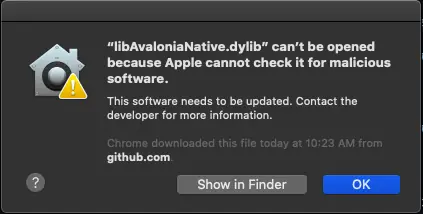
macOS can show a warning that a downloaded native library or application cannot be opened because Apple cannot check it for malicious software. That warning is an operating-system trust decision, not proof that the file is safe or unsafe. Confirm that the archive came from the official AssetRipper release, keep your security tools enabled, and use Apple's documented approval flow only when you understand the source.
The official AssetRipper macOS screenshots include this type of warning. If the message is different, the file was modified, or the source is an unknown mirror, stop and re-download from the official release page instead of disabling protections broadly.
AssetRipper macOS: make the launch repeatable
A clean AssetRipper macOS test separates architecture, extraction, permission, and input problems. First confirm whether the Mac is Intel or Apple Silicon. Then download the matching official archive, extract it into a short folder that you can write to, and keep the original ZIP nearby. If the application fails before it shows a window, troubleshoot the launch boundary before you investigate Unity files.
If a terminal command is needed, use the actual path and executable name from your extracted folder. A copied command with a different release layout can target the wrong file, especially when the folder name contains spaces. The chmod step changes the executable bit; it does not repair a damaged archive, remove encryption, or prove that an unknown download is trustworthy. Re-download from the official release when the source or filename is uncertain.
After the first launch succeeds, test a small authorized input and write the result to a separate output folder. This gives you a useful baseline for later tests with a larger project. Keep macOS permissions and file access in mind: a protected folder, an external drive, or a synchronized directory can introduce a different error from the parser itself.
If the application opens but the scan reports no files, the macOS launch step is already complete and the next investigation belongs to the input path. Check that the selected folder contains supported Unity data, not only the ZIP, a launcher, or an outer package. If the application never opens, return to the architecture, extraction, permission, and Gatekeeper checks before changing the Unity input. This split keeps an operating-system message from being confused with a parser error.
For a repeatable AssetRipper macOS report, include the chip family, macOS version, archive filename, extraction location, exact warning, and whether the application reached its main window. These details distinguish a missing executable permission from a blocked library and distinguish both of those launch issues from a later no-files-loaded message. They also give another user enough context to follow the same official workflow. Keep the downloaded archive name visible in the note, because Intel and Apple Silicon failures can look similar when the only evidence is a generic launch dialog. If you move the app later, repeat the permission check against the new path instead of assuming the old terminal command still points to the right binary. This small record is also useful when comparing a clean re-extraction with a folder that was manually changed. Keep the test folder simple while you compare.
A macOS launch test should confirm both the archive choice and the extracted folder. Intel Macs use the x64 build, while Apple Silicon Macs normally use the ARM64 build. Extract the complete ZIP to a writable location before opening the application. Keeping native libraries beside the executable avoids a common false diagnosis in which a permission message is actually caused by an incomplete extraction.
After the first macOS launch, keep the working folder unchanged until the application can load a small authorized input. If Gatekeeper asks for confirmation, verify the official source and use the normal macOS approval flow rather than downloading a modified build. Record whether the issue appeared before launch, while loading files, or during export so platform permissions are not confused with Unity data compatibility.
- Check the processor family in About This Mac before choosing the x64 or ARM64 archive.
- Extract the complete ZIP and keep the executable beside its native libraries and supporting files.
- Use System Settings or the documented terminal permission step only after verifying the official source.
- Test one small Unity file or bundle before loading a large directory, then compare the output in the correct viewer.
AssetRipper macOS questions
Does AssetRipper run on Apple Silicon?
The official release provides a macOS ARM64 archive for Apple Silicon Macs and a macOS x64 archive for Intel Macs.
Why does macOS say the AssetRipper file cannot be opened?
The archive may need executable permission or macOS may be applying a Gatekeeper warning to a downloaded file. Verify the source and follow the official macOS workflow.
Can I run AssetRipper from the ZIP?
Extract the ZIP first. Native libraries and the executable should remain together in the extracted folder.
Is the macOS warning a virus detection?
A Gatekeeper warning is an operating-system trust message, not a complete malware verdict. Verify the official source and use your normal security process.