

AssetRipper stuck on no files loaded: check the scan state
After choosing an input, note whether AssetRipper finishes or keeps processing. A completed No files loaded result points to the selected location or data type; a changing phase is not proof that the folder is empty. Record the status before restarting.
Separate three stages: folder selection before recognition, a read error after a file is reached, and an export crash after loading. Each needs different evidence; an export fix will not solve an empty scan.
Use the table to choose the next check. Combine the status, selected path, and a small test before drawing a conclusion.
| What you see | What it establishes | Next check |
|---|---|---|
| No files loaded after the scan ends | No recognized result is currently shown | Verify the selected path and test one known input |
| Processing continues | The application may still be working | Record the phase and observe whether progress changes |
| Error while reading an assets file | A file was reached but could not be read | Use the separate read-error guide and preserve the log |
| The app closes during export | The failure occurs after loading | Use the export-crash checks and record resource details |
Check the folder you selected and the files inside it
A folder name alone cannot show whether AssetRipper can recognize its contents. The top level may contain launchers, documentation, platform folders, or an archive while relevant Unity data sits deeper. Inspect the selected folder before changing builds.
Follow one branch at a time and record the path you test. Names such as Data, Content, or StreamingAssets are clues, not a universal layout; use only data you are authorized to inspect.
The first-run illustration shows a general extract, launch, and open sequence. It is editorial artwork, not a screenshot or required Unity layout.
Write down the selected path
Record the selected path and parent folder. Keep account names and private details out of public reports.
Inspect one level above and below
Check whether the folder contains files or only child folders. If the data is deeper, test that location instead of a broad parent.
Look for a known input
Choose one small, authorized Unity input. A launcher, image, readme, or arbitrary archive may not be useful input.
Change only the selection
Repeat with the specific path while keeping the build and output settings unchanged.
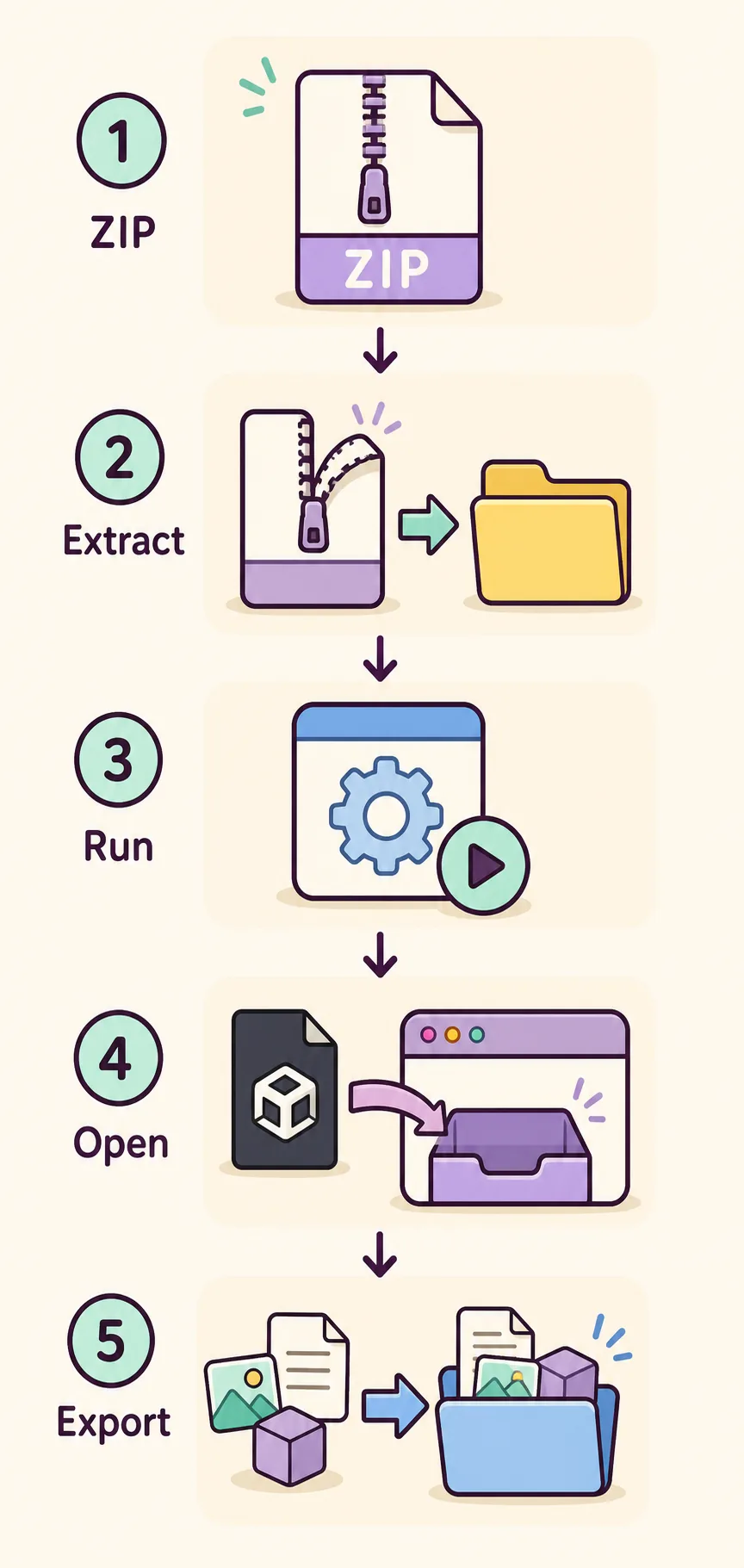
Extract archives completely and keep related files together
If the source is a ZIP or other archive, extract it before choosing files. A file browser can display compressed contents even though AssetRipper is pointed at the archive itself. Extract to a writable folder, wait for completion, then inspect that copy.
Keep neighboring files together for the first test. Moving a file, renaming sidecar data, or mixing builds may remove needed relationships. Preserve the original and use a clean extracted copy you can retest.
If extraction reports an error or the folder looks incomplete, make a fresh copy from an authorized source. Do not bypass encryption, access controls, or custom protection; those are not folder-selection problems.
The selected item is still a ZIP or nested archive
Likely cause: The expected files may not have been extracted into a normal folder yet.
Try this: Extract into a new folder, confirm the operation completed, then select the extracted location.
The extracted folder contains only notes, images, or launchers
Likely cause: The selected directory may not be the Unity data location.
Try this: Inspect child folders and test one authorized input that is relevant to the build.
- Keep the source archive unchanged until a small test succeeds.
- Use a writable local path and avoid mixing files from different builds during diagnosis.
- Record extraction errors separately from AssetRipper loading messages.
Run a controlled test with one known authorized input
A large project may contain many irrelevant files. Start with one known, authorized Unity file or a small folder. If it loads, add one related folder or dependency at a time; if it does not, keep the input fixed while checking its type and log.
For a comparable test, keep the AssetRipper build and source copy the same and use a new empty output folder. Change one variable at a time so a different result has a clear cause.
Choose a small baseline
Use an identifiable file or compact folder you have permission to inspect. Keep it unchanged.
Use a clean destination
Choose a writable output location with free space. Do not reuse partial results.
Wait for a clear state
Note whether the scan finishes, warns, or stays active. There is no universal wait limit; use status changes and logs.
Add scope only after a baseline
If it works, add one dependency and repeat. If it fails, keep the smallest failing example.
Read the log before changing builds or paths
Before restarting, save the exact message and relevant log lines. Record the selected input, whether the scan ended, and any phase change; a stall and a completed empty result are different observations.
A historical official issue describes one file load pausing at Editor Format Conversion in an older release. It does not establish a defect in current releases or a universal fix. Compare your own version, input, and log.
After recording a baseline, compare another official build and its notes if useful. Avoid unknown mirrors and do not remove operating-system protections to make an input load.

Prepare a useful and safe issue report
If the same small authorized input still shows no files loaded, report the AssetRipper version, operating system and architecture, input type, selected path level, exact message, and relevant log lines. State what you expected and what happened.
Keep the reproduction small and remove private information. Do not attach proprietary files, credentials, account data, personal paths, or anything you cannot share. If the input must remain private, describe its type and ask maintainers what evidence is safe to provide.
- Application version and release channel
- Operating system and processor architecture
- File or folder type and the selected directory level
- Whether processing completed, stopped, or remained active
- Exact status, relevant log lines, and one controlled test result
AssetRipper no-files-loaded questions
Why is AssetRipper stuck on no files loaded?
The selected location may not expose recognized Unity data, the source may still be inside an archive, or processing may not have finished. Check the exact status and test one known authorized input before changing the build.
Should I select a file or a folder?
Use the input workflow documented for your source, then verify the path you selected actually contains the relevant Unity data. If a broad parent folder returns nothing, test a specific child location without changing other settings.
How long should I wait for AssetRipper to load files?
There is no single wait limit that applies to every input. Record whether the status or log continues to change; if it remains at one phase, treat that as a possible stall and save the log rather than assuming the scan is empty.
Will the latest AssetRipper release fix this?
Do not assume a release fixes an issue without checking its official notes or testing the same small input. Record your current build first, then compare an official release while keeping the input and destination consistent.
Can I load encrypted or protected files by changing the folder?
No. Folder troubleshooting is not a way to bypass encryption, DRM, access controls, or permissions. Use only data you are authorized to inspect and stop when a protection boundary prevents access.
What should I include in an issue report?
Share the application version, operating system, general input type, selected folder level, exact status, relevant log lines, and result from one small test. Remove personal paths and never attach files you cannot legally share.